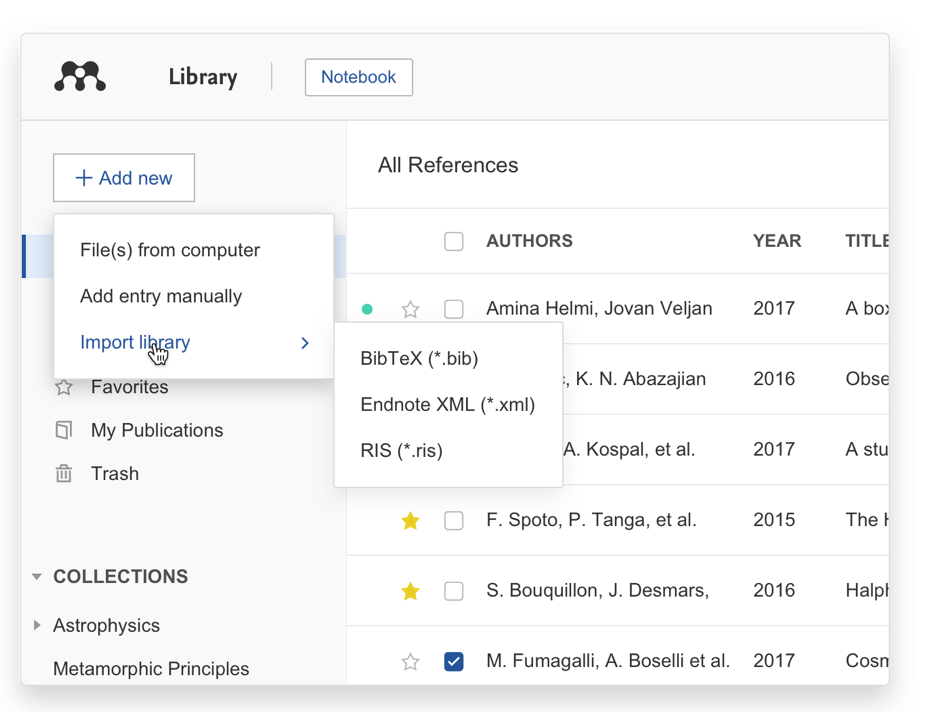
I have an existing reference library
You can transfer your library from other reference managers into Mendeley Reference Manager.
-
Use the Export option within the other software to extract your references in BibTeX, EndNote XML or RIS file format.
-
In Mendeley Reference Manager use the 'Import library >' option in the '+ Add new' menu and select the exported file to add its contents to your Mendeley library.
I have PDFs that I want to import
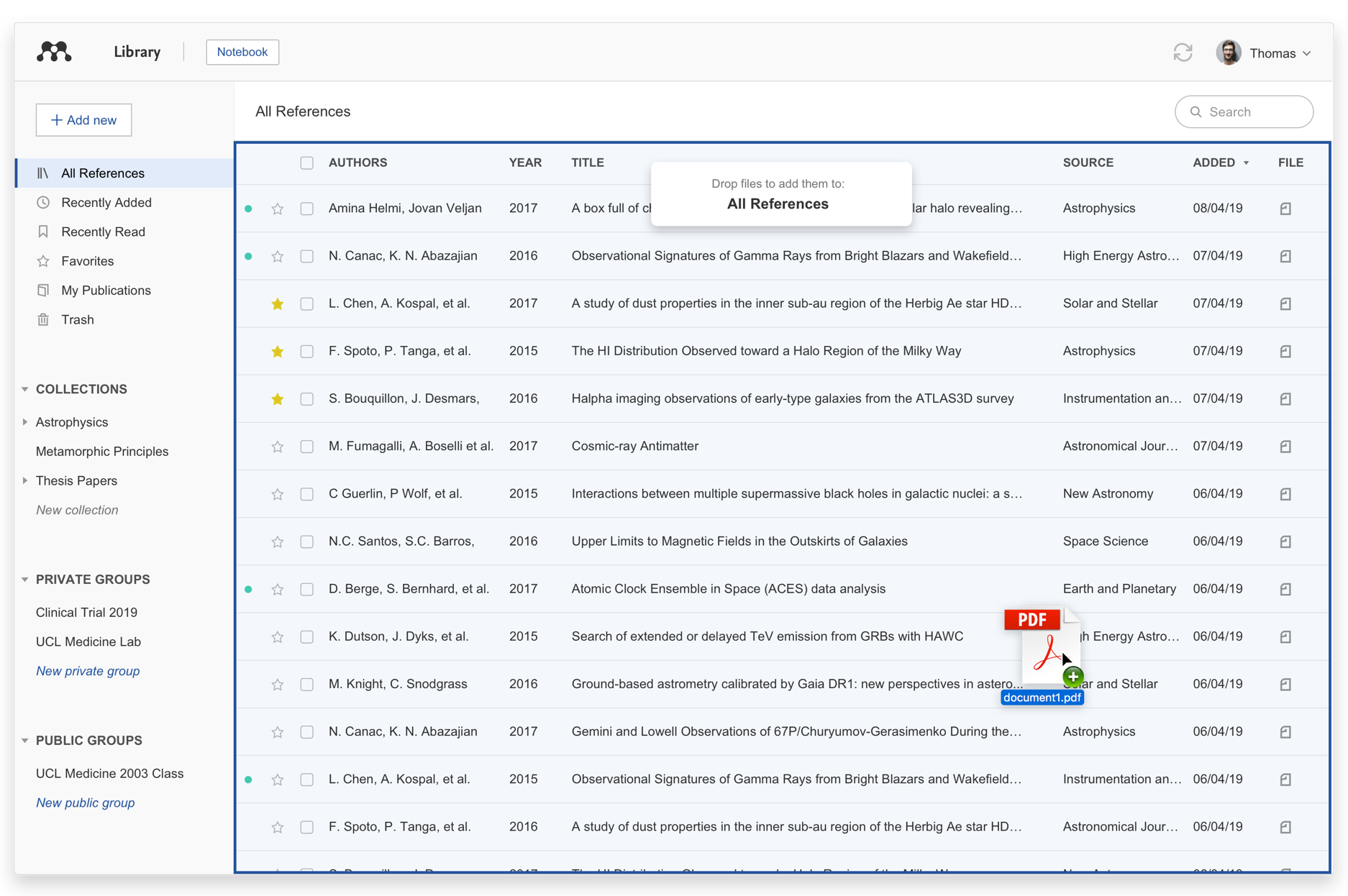
Drag and drop PDFs
Add references to your Mendeley library by dragging and dropping a PDF into the Mendeley Reference Manager window. You can also drag multiple PDFs into your library at the same time. Mendeley will automatically extract the metadata from the PDF(s) and create a library entry.
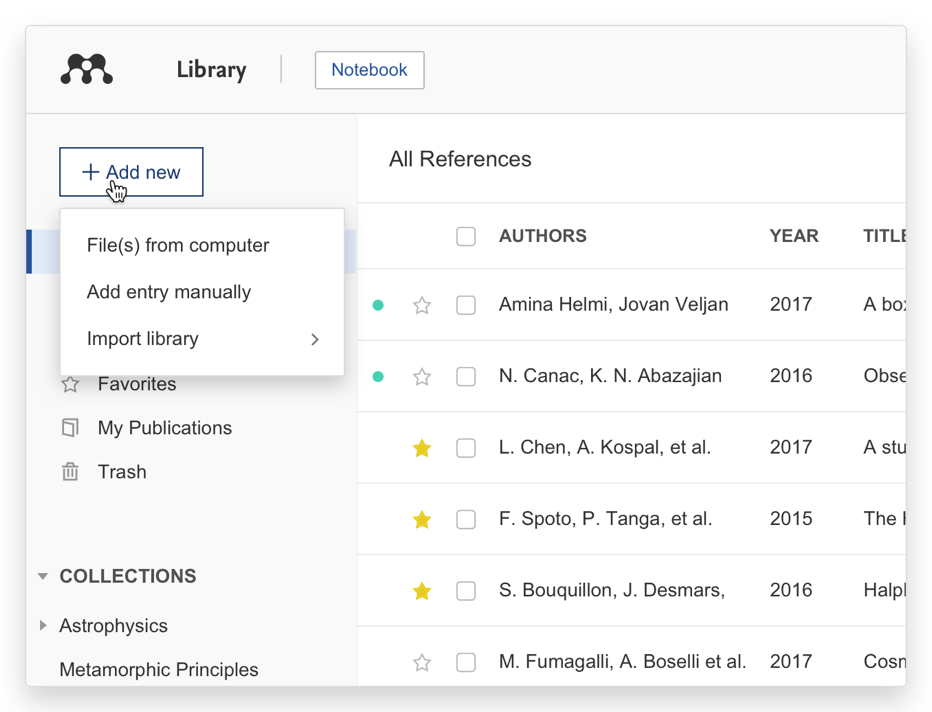
Browse for files
Use the 'File(s) from computer’ option in the '+ Add new' menu to select a reference from your computer and add it to your Mendeley library.
Watch a folder on your desktop
You can chose to watch any folder located on your desktop to import references from. Any PDFs located in this folder will be automatically imported to your Mendeley library into 'All References'. When you add any new PDFs to this folder, the files will be instantly imported into your library when you have an internet connection. Currently, you can have a single watched folder per device. The feature is only available for Mendeley Reference Manager Desktop.
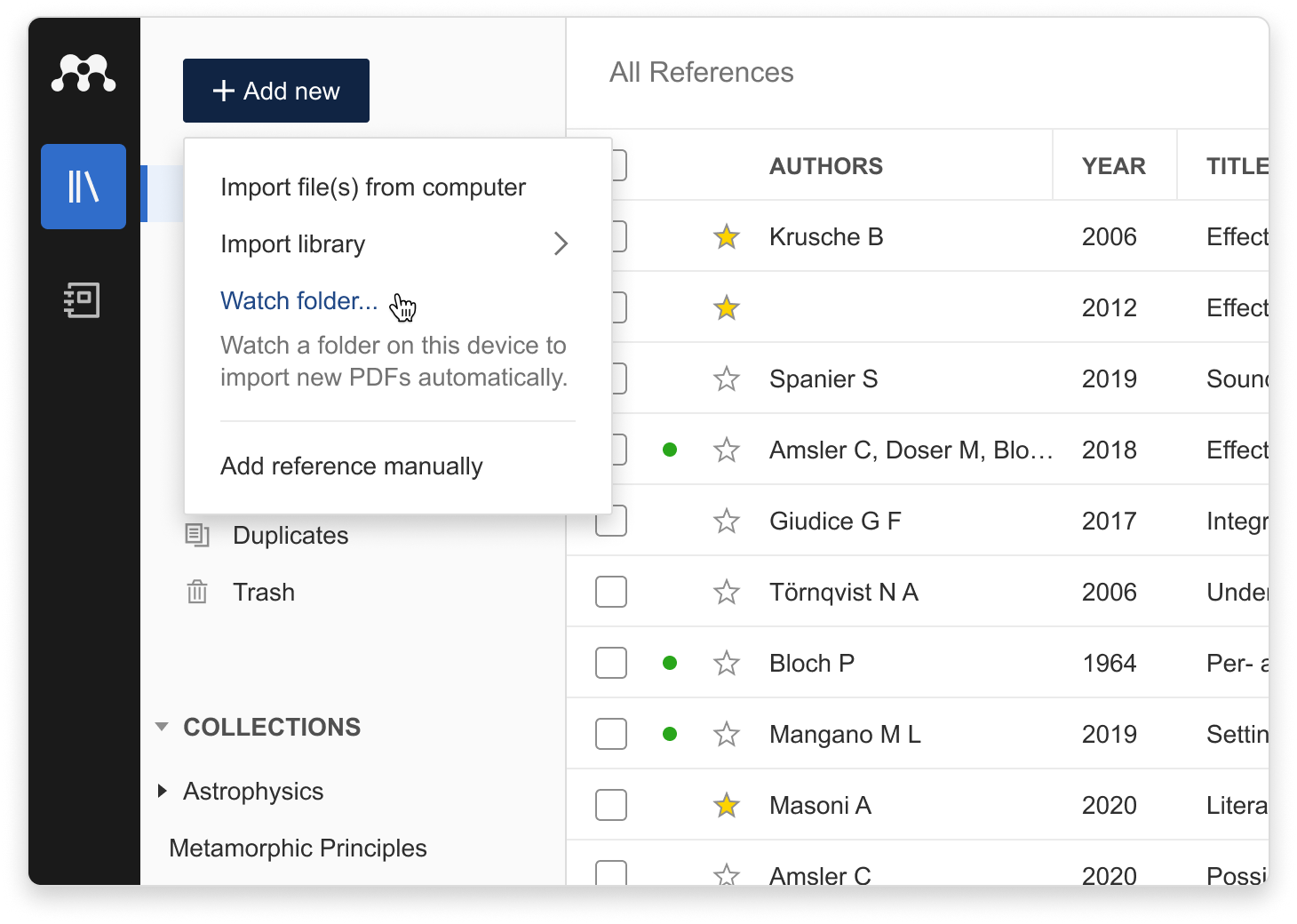
Use the 'Watch folder...' option in the '+Add new' menu to open the preferences panel with the 'Watch folder' menu open, additionally, you can also access Watched Folders directly from the preferences panel.
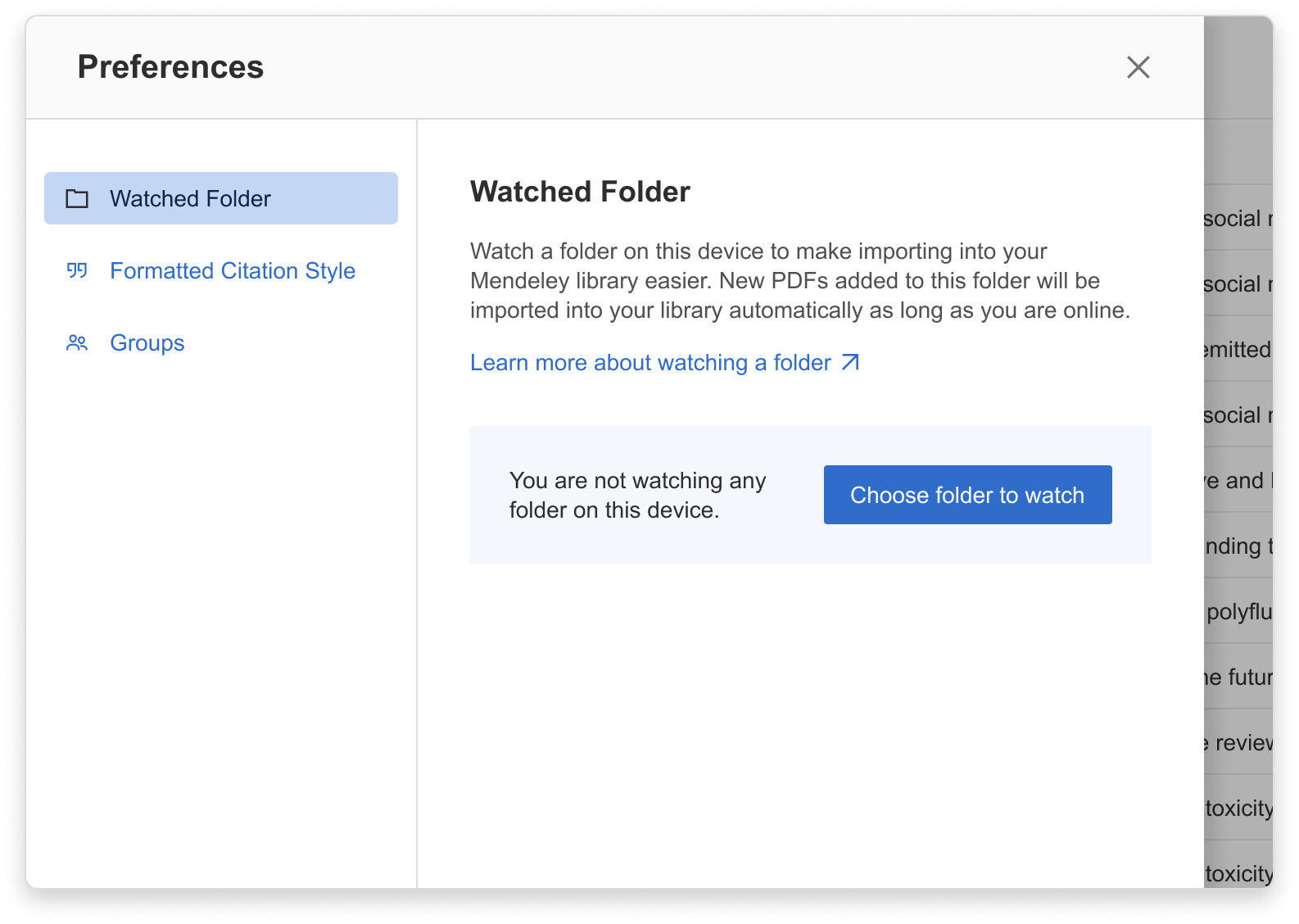
Then select the 'Choose folder to watch' option to open the file selector. Browse to the file you wish to watch, then select it and use the 'Open' option to start watching the folder.
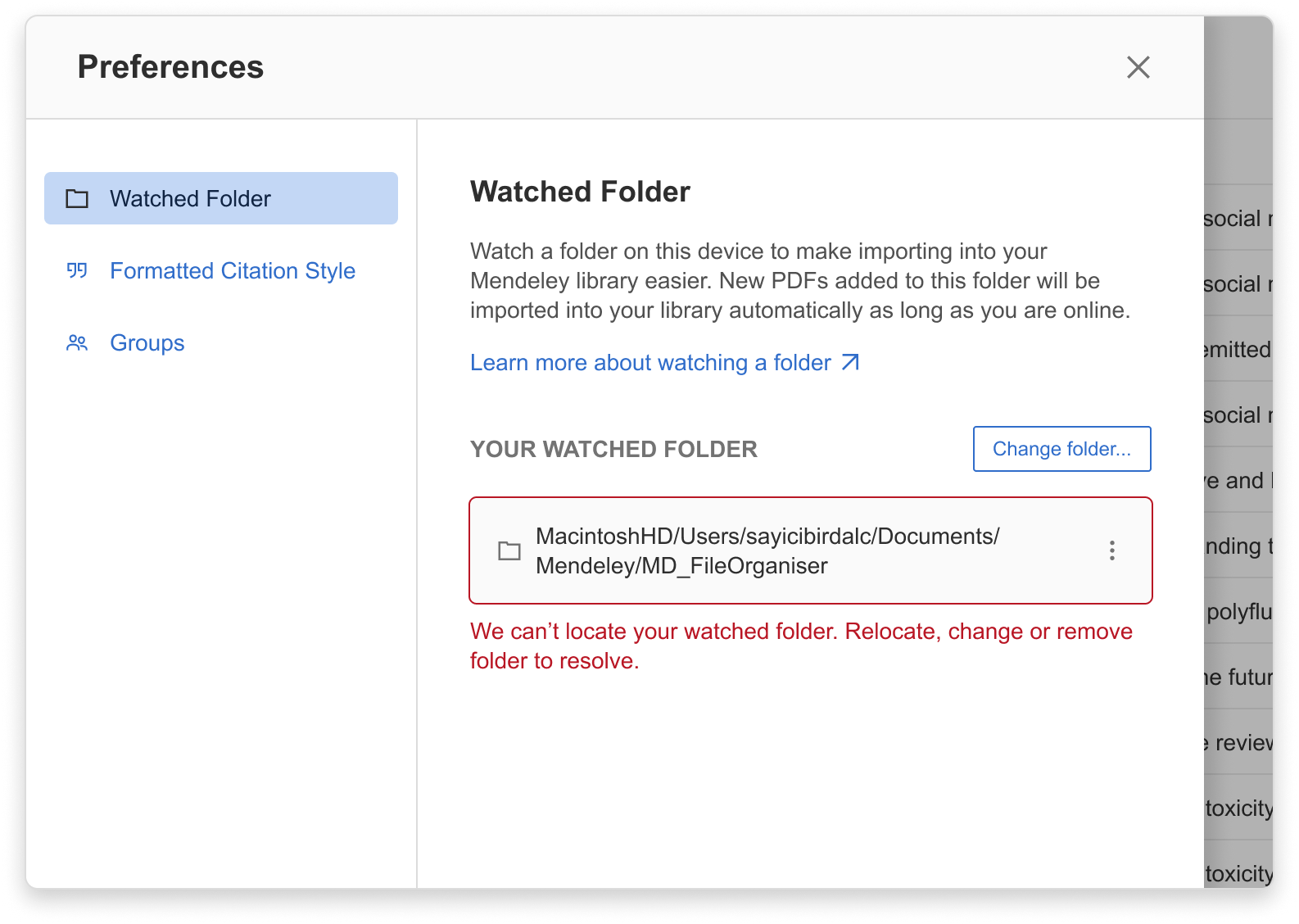
If you change the location of the folder in your computer or rename it, Mendeley will not be able to locate it anymore and the connection to the watched folder will become broken. If this happens, you will see a notification to let you know. You will have the option to reinstate or change the watched folder. Your previously imported PDFs will remain in your Mendeley library.
You can also chose to restore your watched folder via the folder option menu. This will reimport every PDF in this folder, including ones you may have previously imported. You may want to use this feature incase there are certain PDFs that aren't importing, this way you can override and force reimport. You can utilise the duplicates functionality to remove any reimported documents. You can also stop watching a folder by selecting the 'Remove watched folder' option in the menu.
I don't have PDFs but I want to create references
Manually create an entry
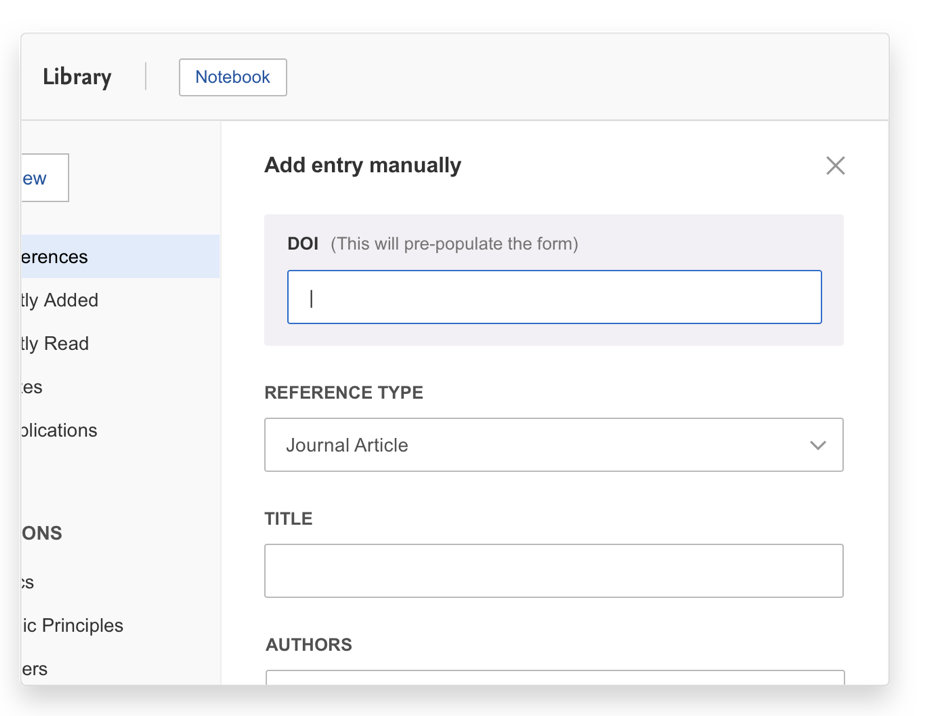
Use the manual entry option to create library entries when you don't have the PDF.
Select the 'Add entry manually’ option in the '+ Add new' menu to manually input the details of a reference. Select the appropriate document type and complete the fields to create a library entry.
Tip: You can use a DOI to look up the details of a reference.