Using quick search to retrieve references
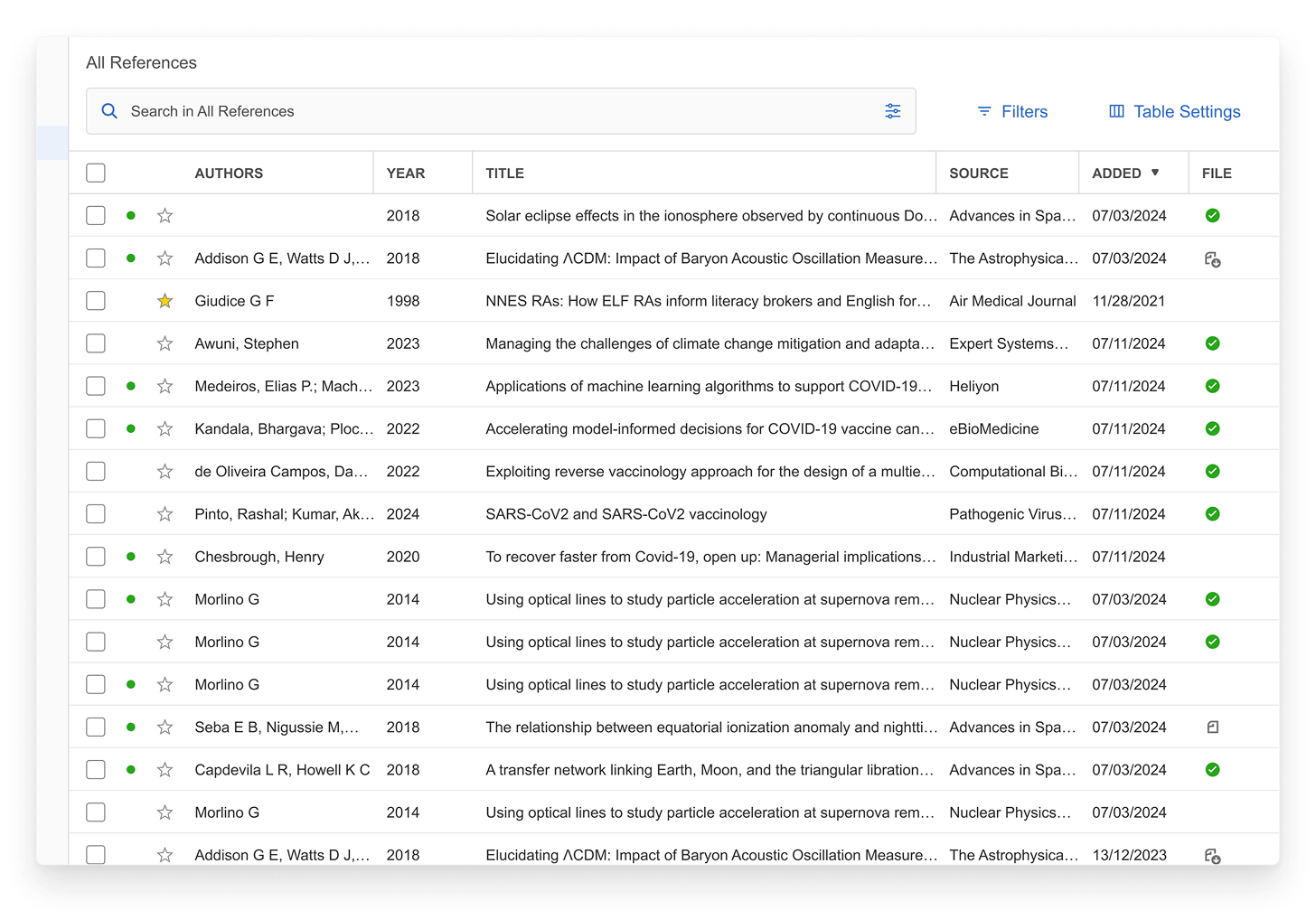
Mendeley Reference Manager search allows you to quickly retrieve your references.
Enter a search term in the field then press enter and Mendeley Reference Manager will return results based on the reference title, author, year or source. The search tool also is context-specific so will return results based on the collection you are currently viewing. You can use this to quickly pinpoint specific references.
To search your entire library ensure that ‘All References’ is selected.
Advanced Search
Go deeper with powerful search tools to find exactly what you need. This feature is not available on Mendeley Reference Manager web.

Field Search
Target your search to specific fields for more relevant results.
-
title: - Search only in document titles
-
author: - Find works by specific authors
-
year: - Filter by publication year
-
abstract: - Search within abstracts only
-
pdf: - Search within PDF content
-
tag: - Find by document tags
-
citation-key: - Search by citation key
Examples:
title:diabetesauthor:johnsonyear:2023abstract:"clinical trial"
Search Operators
These operators can be used in combination with field search operators for more precise results.
" " Exact Match
Wrap phrases in double quotes to find exact matches. This ensures the words appear together in the exact order specified.
Example:
"machine learning"
✓ Finds: Documents containing exactly "machine learning"
✗ Excludes: "learning machine" or "machine-based learning"
! Exclude
Use the exclamation mark before a term to exclude it from your search results. You can also combine it with a field search to exclude a search term from a specific field.
diabetes !"type 2"
diabetes !author:smith
Finds documents about diabetes but excludes those mentioning "type 2" or by author "smith".
TIP: Simply type the operators in the search field to trigger them quickly.
Include/Exclude from Search
Use the toggle switches to control which content areas are searched:
Abstract When enabled, searches include document abstracts. This provides more context than title-only searching.
PDF Text When enabled, searches include full PDF content. Disable for faster searches when you only need titles and abstracts.
Common Search Patterns
Find recent papers on a topic:
title:"artificial intelligence" year:2025
Exclude review articles:
machine learning !tag:review
Find papers by multiple criteria:
author:patel abstract:"patient outcomes" year:2023
Smart Collections
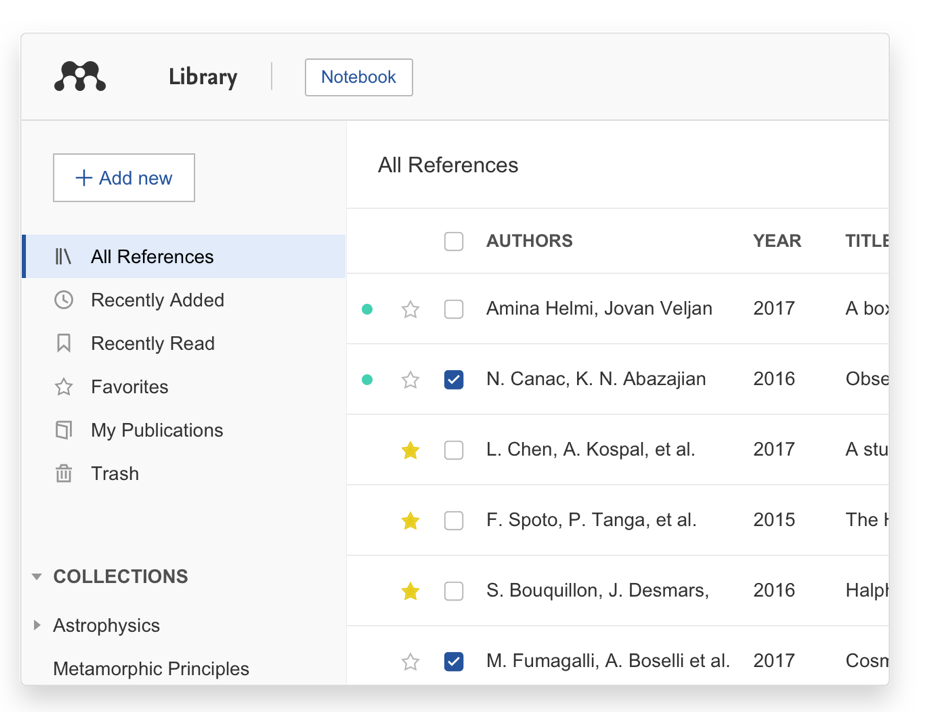
Mendeley Reference Manager automatically organizes your references into smart collections.
- Recently Added - Displays the references added to your library in the last 30 days.
-
Recently Read - Displays the references for PDFs opened in the last 30 days.
-
Favorites - ‘Star’ a reference to automatically add it to your ‘Favorites’ collection.
-
My Publications - This collection displays the publications that you have authored and claimed through the Scopus Author Profile.
- Trash - Displays the references that you have deleted from your library.
Custom Collections
Custom collections offer a way to quickly filter the view of your library.
Adding a reference to a collection in your Mendeley library does not relocate the reference, but instead acts as a label. This means that any reference added to a collection will still appear in ‘All References’. If you delete a collection the references inside will still be available in ‘All References’.
To create a new collection, select the ‘New Collection’ button in the left hand navigation panel.
To add a reference to a collection, drop it onto a collection in the left hand navigation panel.

Using the action panel
The action panel allows you to organize multiple references.
Select the check box next to a reference and the action panel will open at the bottom of the screen. Using the action panel you can:
- Add references to your collections or groups using the 'Add to' menu.
- Mark references as Favorites using the 'Mark as' menu.
- Trash references using the 'Delete' option.
